
The Blogger’s Security Checklist: What to Lock Down Before You Publish Another Post
To help ensure you follow the Blogger’s Security Checklist, we’ve compiled essential steps for every blogger. This Blogger’s Security Checklist is vital for maintaining the safety of your online presence. Reviewing the Blogger’s Security Checklist can help prevent unfortunate incidents. Follow the Blogger’s Security Checklist to protect your blog from threats.
Using the Blogger’s Security Checklist ensures you address potential vulnerabilities. Following the Blogger’s Security Checklist is a proactive measure all bloggers should take.
Table of Contents
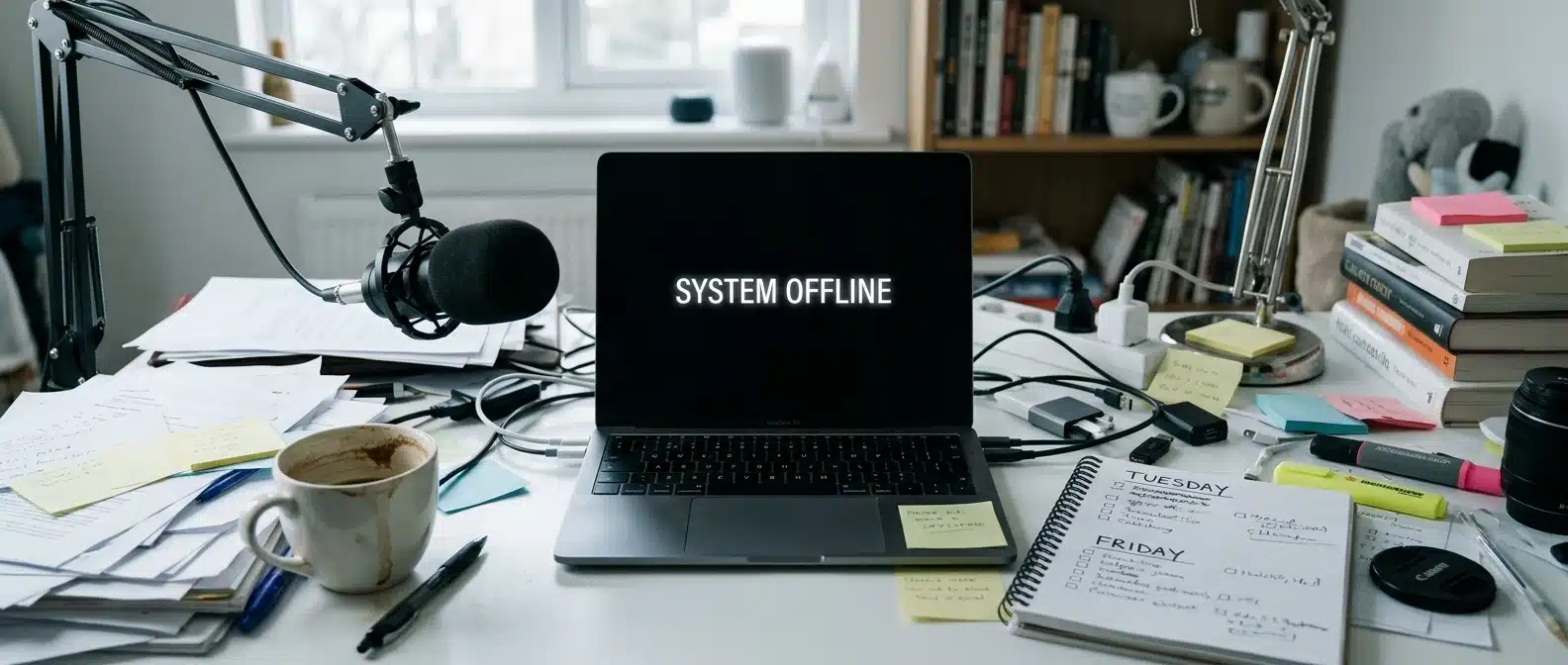
Dana learned the importance of the Blogger’s Security Checklist the hard way.
Picture a blogger we’ll call Dana. She runs a lifestyle blog and a small podcast on the same site, publishing every Tuesday and Friday. On a Monday morning, she opens her homepage to share a link and finds a black screen with a message from a stranger. Her post archive is no longer visible. Her email list tool has sent a note to subscribers about a “security alert,” and the link in it goes somewhere she has never seen.
Dana is an illustration, not a real person, but the sequence is a common one. This article walks through what typically lets a break-in happen and the settings that close each opening. Everything here is aimed at blog security basics for creators with no technical background, and the whole routine fits into one 30-minute sitting.
How blogs actually get hacked (and why small sites are the easy target)
Most blog break-ins are not personal. Automated programs scan the internet around the clock, trying common passwords on login pages and looking for plugins with known flaws. They do not care whether a site has ten readers or ten thousand. They care whether the door opens.
That is why small sites get hit so often. A solo blogger has no IT person, updates when she remembers, and has usually installed a few extras along the way. Each of those habits leaves an opening that a bot can find without any human attention.
In Dana’s case, the likely causes were ordinary:
The Blogger’s Security Checklist is an essential tool for any blogger.
Make sure you have the Blogger’s Security Checklist handy while setting up your blog.
The Blogger’s Security Checklist will guide you through securing your blog effectively.
Rely on the Blogger’s Security Checklist to enhance your blog’s defenses.
- She used the same password on her blog login as on an old forum account that later leaked.
- One plugin had not been updated in months, and the update that fixed a known flaw sat unclicked.
- A “free premium” theme she downloaded from a third-party site included code she never inspected.
- Her admin username was the default, so an attacker only had to guess the password.
- She had backups, but she had never tested whether one could be restored.
Implementing the Blogger’s Security Checklist can save you from future headaches.
Review the Blogger’s Security Checklist regularly to stay ahead of threats.
Five openings, and each one has a fix that takes a few minutes. The rest of the article goes through them in order of payoff.
Fix your login first: strong passwords, a password manager, and two-factor authentication
Your login page is the front door, and it is the first place attackers try. Start there.
A strong password is long and used nowhere else. Reuse is the real danger: when one site is breached, attackers try the same email and password combination on other sites. Nobody can memorize dozens of unique long passwords, which is why you need a password manager. It generates a random password for each account, stores it, and fills it in for you. You remember one strong master password, and the manager handles everything else.
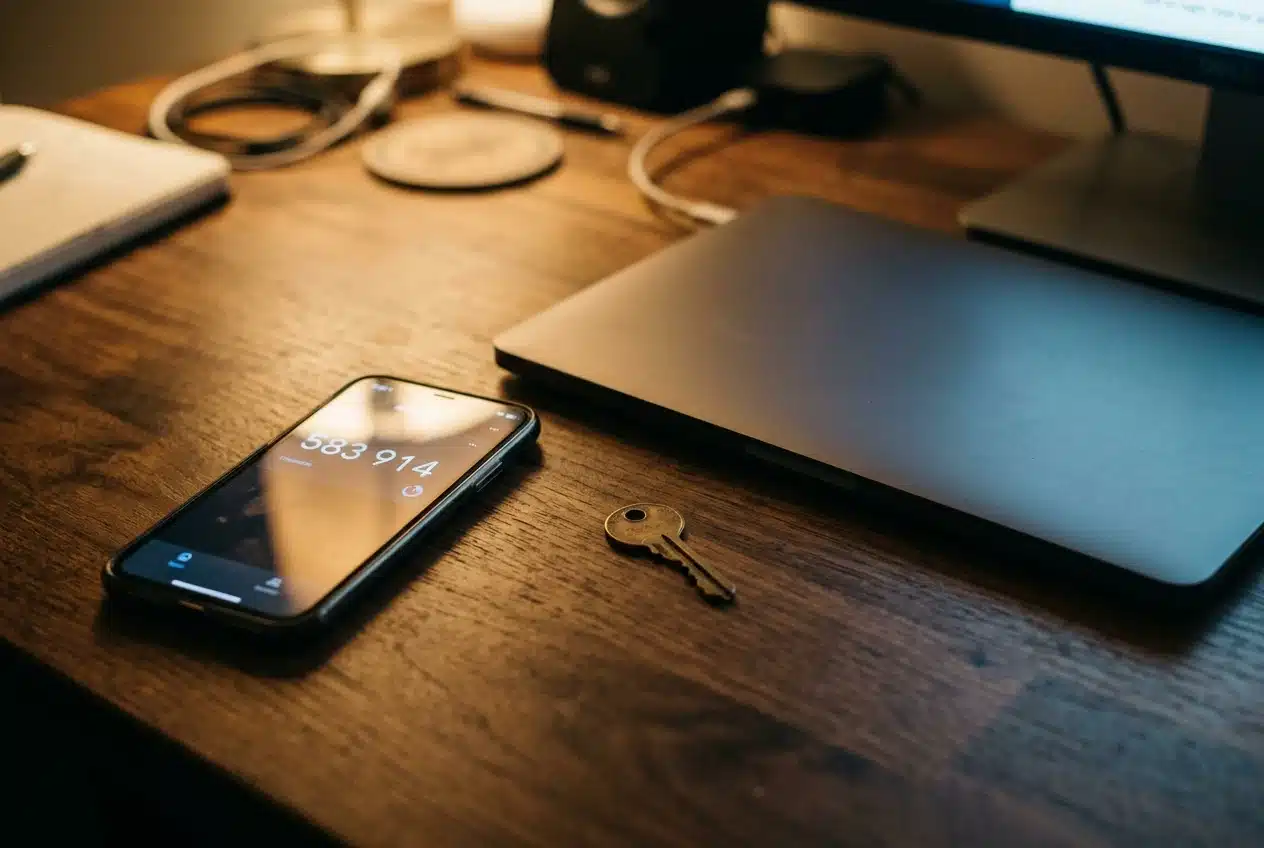
Then turn on two-factor authentication (2FA) for your blog admin account. With 2FA, a correct password is not enough: the login also asks for a code from an app on your phone. An authenticator app is generally a safer choice than codes sent by text message, because phone numbers can be hijacked. Most WordPress-style platforms offer 2FA either built in or through a plugin.
Do the same for the accounts that connect to your blog: your hosting account, your domain registrar, and your email. If someone controls your email, they can reset the password for everything else.
Keep your platform, theme, and plugins updated without breaking your site
Updates are mostly security patches. When a flaw in a plugin becomes public, attackers start scanning for sites still running the old version, so the longer you wait, the more exposed you are.
Using the Blogger’s Security Checklist will help you establish a solid foundation for safety.
The reason bloggers skip updates is fear that something will break. That fear is reasonable, and a short routine handles it:
Each blogger should embrace the Blogger’s Security Checklist as a best practice.
- Make sure you have a current backup before you update anything.
- Update one item at a time, starting with the platform itself, then the theme, then plugins.
- After each one, open your homepage, your newest post, and your contact form to check they still work.
- If something breaks, roll back that single update and check the plugin developer’s support page for a fix.
Many platforms can apply minor and security updates automatically. Turn that on where it is offered, and keep the manual check for major version changes. Pick a recurring time, such as the first Monday of the month, and put it on your calendar next to your publishing schedule.
Delete anything you are not using. A deactivated plugin or an old theme still sits on your server and can still be exploited if it has a flaw. Unused means removed, not paused.
Vet every plugin and add-on before it touches your site, including automation and AI tools
Every plugin you install runs with real access to your site. A good one saves hours. A bad one can read your data, add hidden links, or open a back door.
Before installing anything, check these things:
- Source. Install from the official plugin directory or the developer’s own site, never from a download page promising a paid plugin for free. Those copies are a well-known way to spread malicious code.
- Maintenance. Look at when it was last updated. A plugin untouched for a long time may have unfixed flaws and may no longer work with current versions of your platform.
- Reputation. Read recent reviews and the support forum. Look for how the developer responds to problems.
- Purpose. Ask whether you need it at all. If a feature is available in your theme or in a tool you already use, skip the extra plugin.
Automation and AI tools deserve the same scrutiny, and often more. Many connect to your site through a login, an API key, or a plugin, and that connection can publish, edit, or read content. Give a connected tool the narrowest access it needs, not a full administrator account. If you stop using it, remove the plugin and revoke its access from the tool’s own settings as well. If you are comparing options, our guide to AI tools for professional bloggers is not a substitute for this check, so run each one through the list above anyway.
Lock the doors people forget: admin usernames, user roles, login limits and HTTPS
A few quiet settings do a lot of work, and most bloggers never open them.
Change the default admin username. If your administrator account is called “admin,” attackers already have half the login. Create a new administrator with a different username, log in with it, then delete the old account and reassign any posts to the new one.
Check your user roles. Go through the user list. Anyone who only writes needs the Author or Contributor role, not Administrator. If a former guest writer or freelancer still has an account, remove it. Give every person the lowest role that lets them do their job.
Limit login attempts. A bot trying thousands of passwords is stopped by a setting that locks out an address after a few failed tries. Many security plugins include this, and some hosts offer it at the server level.
Use HTTPS everywhere. HTTPS encrypts the connection between your readers, or you, and your site. Most hosts provide a free certificate. Confirm that your site address begins with https:// and that the http:// version redirects to it. Browsers also warn visitors away from sites without it, which hurts trust before security even comes up.
Set up a security plugin and basic monitoring, so you hear about problems first
In Dana’s story, the hack ran for a while before she saw it. A reader noticed first. You want the reverse, where your own tools tell you within hours.
A reputable security plugin covers several jobs at once. It scans files for known malicious code, flags changes to core files, blocks suspicious traffic, and often adds login limiting and 2FA. Choose one with recent updates and a large active user base, install only one (two competing security plugins can conflict), and turn on email alerts to an address you check daily.
Add an uptime monitor, which pings your site every few minutes and emails you if it goes down or changes dramatically. Several free options exist. It will not prevent a break-in, but it shortens the time between the problem and your knowing about it.
Also check where your alerts go. A warning sent to an inbox you open once a month is the same as no warning.
Your 30-minute lockdown checklist, and where backups fit in
Don’t forget to refer to the Blogger’s Security Checklist before launching your blog.
Incorporate regular backups into your security plan to ensure data recovery in case of an incident. Use a reliable backup service that offers both automated and manual options, allowing you to restore your site quickly. Schedule backups during off-peak hours to minimize disruption and ensure the latest changes are captured. Additionally, familiarize yourself with the restoration process so you can act swiftly if needed. Regularly review and update your security measures to adapt to evolving threats.
Set a timer and work through this list in one sitting. The times are a guide for a site with a handful of plugins.
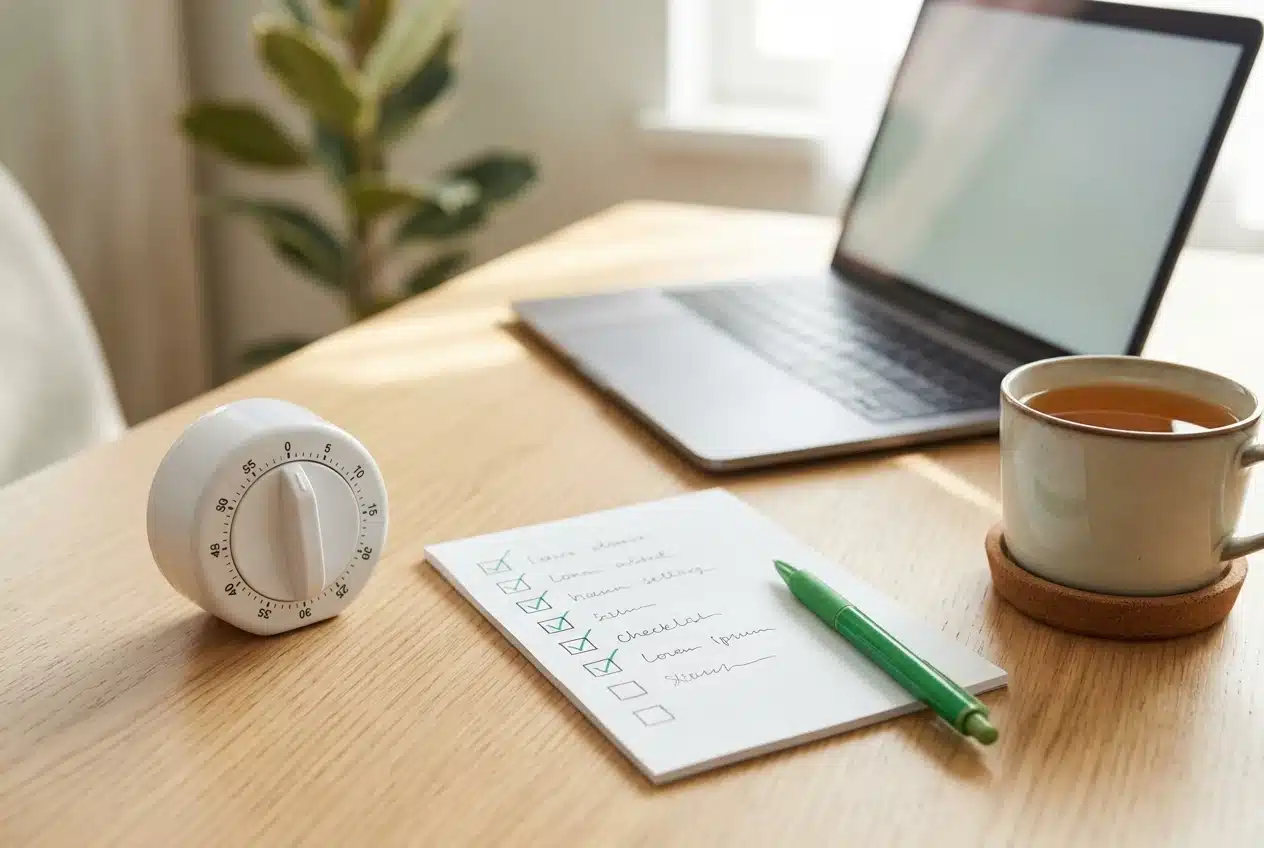
- Minutes 1 to 10: logins. Set up a password manager, replace your blog, hosting, domain, and email passwords with unique ones, and turn on 2FA for each.
- Minutes 11 to 15: updates. Take a backup, then update your platform, theme, and plugins one at a time, checking the site after each. Delete anything unused.
- Minutes 16 to 20: plugin audit. Review every plugin and connected tool against the source, maintenance, reputation, and purpose questions. Remove or revoke what fails.
- Minutes 21 to 25: quiet settings. Replace the default admin username, trim user roles, switch on login limits, and confirm HTTPS.
- Minutes 26 to 28: monitoring. Install one security plugin, turn on email alerts, and set up an uptime monitor.
- Minutes 29 to 30: backup check. Confirm that an automatic backup exists, that it is stored somewhere other than your web server, and that it ran recently.
Backups are the last item on purpose. This checklist is about keeping attackers out, and a backup is what you rely on if prevention fails. The full process for saving and restoring a site, including how to test it, is in WordPress Backup and Restore: Your Recovery Plan, so there is no need to repeat it here. Do the quick confirmation above, then read that guide when you have time.
Put a repeat reminder on your calendar for the first Monday of each month, and spend ten minutes rechecking updates, plugins, and user roles. Done that way, security becomes part of your publishing routine, and you can keep publishing on schedule without wondering what is happening behind the scenes.
Taking the time to follow the Blogger’s Security Checklist can save you from security breaches. You can discuss other actions and learn more about content creation and blogs at theBlogMan Academy of Content Creation here.


